Generate Rosters
After you have completed forecasting your employee requirements, it is time to use the availability of your employees to best meet those requirements. The Generate Roster feature allows you to assign employees to rosters on a daily, weekly, or monthly basis. This is the final step in the roster generation process, and once completed, you will have shift start, end, break, and lunch times for each employee, which you can then edit as needed.
Rosters can be built in two different ways:
- Standard Scenario
In the standard scenario, Monet computes and decides the daily number of hours each employee should work based on the employee’s daily, weekly and/or monthly minimum and maximum target hours. Using the daily hours and times of day that every employee is available to work, Monet can assign the optimal times of day, number of hours, and days of the week each employee needs to be assigned to work on a daily, weekly, and monthly basis, as determined by the forecasted requirements. This feature is very useful for flexible agents, like part time or temporary employees, but also supports optimizing the breaks, lunch, and non-call of agents with fixed schedules.
- Legacy Scenario
In the legacy scenario, Schedules must be generated first to determine what shifts need to be staffed at a daily level without taking into account the availability of individual agents. The roster can then be run on top of the schedules to try to fit agents whose availability matches the shifts that have been previously created. This method is being used less and less as the contact center industry evolves over time, as it is more effective to try to use the agents as best as possible when they are available to work, as opposed to generating schedules first that may not match their availability.
When a roster is generated, Monet runs through the legacy process first, if schedules are present, then goes through a second pass trying to ensure that agents met their minimum weekly or monthly targets. This second pass is referred to as Auto-Assign after Roster Build and has become the standard way to generate rosters.
What do you want to do?
Tasks included in this topic:
Related Tasks:
- Open Close Days
- Exception Codes
- Employee Templates
- Maintain Employee List
- Exception Calendar
- Inactive Employees
- Rosters - Inbound Calls
- Reports
- Generate Employee Reports
- Generate Charts
See Also:
Generating a Daily Roster
The Daily screen is slightly different than the Weekly and Monthly screens, but all the same features are available.
- Select Staff from the left-navigation menu.
- Select Generate
Roster.
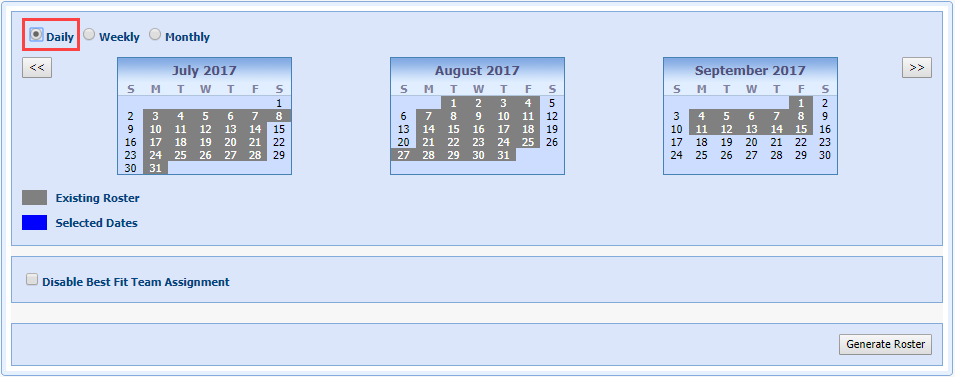
- Select Daily.
- Select the day from the Calendar.
- Select Generate Roster.
Generating a Weekly Roster
This option is used to assign schedules to employees on a weekly basis by using their individual availability while targeting the minimum and maximum number of hours per week that they can work.
- Select Staff from the left-navigation menu.
- Select Generate
Roster.
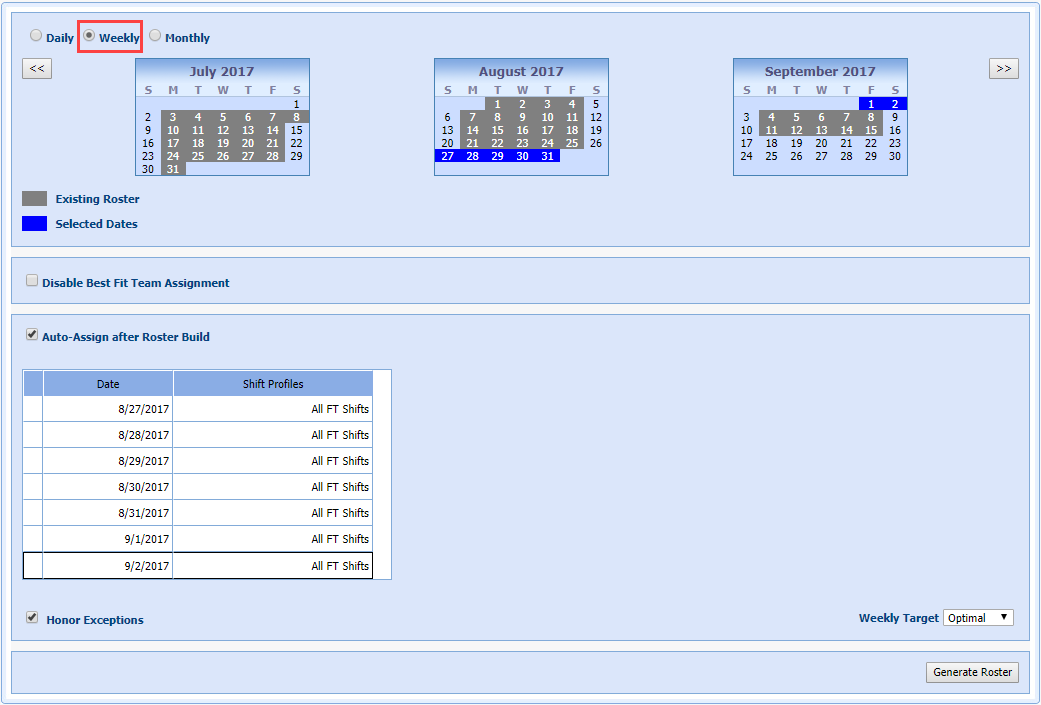
- Select Weekly.
- Select the week from the Calendar by selecting a specific starting day.
- Enter the minimum (Min) and maximum (Max) Length of Non-Call Activity handling slots in hours.
- Auto-Assign after Roster build will be automatically selected and indicates that Monet should be targeting the Weekly or Monthly agent hourly targets, and not trying to fit them into schedules that have already been created alone. When active, the feature displays shift profiles and dates. Rosters can only run with this box unchecked if schedules are present.
- Deselect Honor Exceptions to have the system override any exceptions. (The check box is automatically selected when the Auto-Assign after Roster Build is checked.)
- Select
Weekly Target from the drop-down menu.
This feature automatically finds the most suitable
method to assign employees their minimum amount of weekly hours:
Minimum: Schedules the employee's minimum amount of weekly hours.
Optimal: Schedules the most optimal of weekly hours between min/max.
Maximum: Schedules up to the employee's maximum amount of weekly hours.
Unlimited: Schedules the employee's hours regardless of their weekly target.
- Select Generate Roster.
Generating a Monthly Roster
This option is used to assign schedules to employees on a weekly basis by using their individual availability while targeting the minimum and maximum number of hours per week that they can work.
- Select Staff from the left-navigation menu.
- Select Generate
Roster.
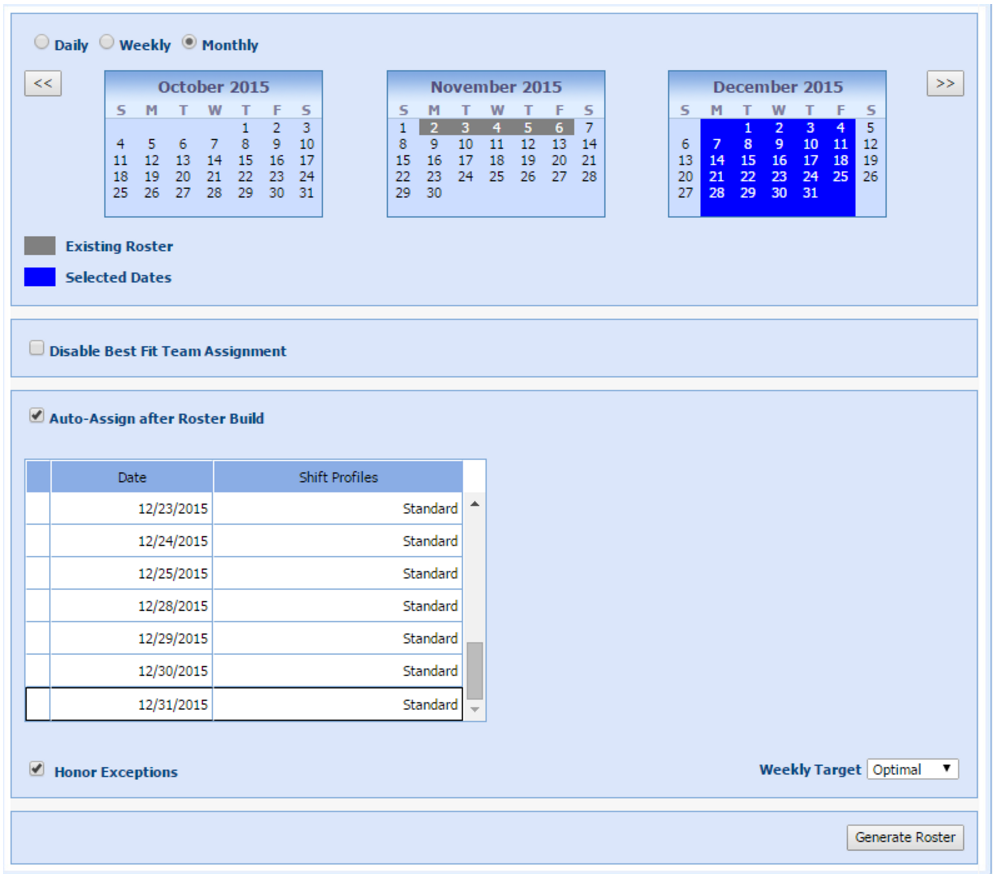
- Select Monthly.
- Select the month from the Calendar by selecting a specific starting day.
- Auto-Assign after Roster Build will be automatically selected and indicates that Monet should be targeting the Weekly or Monthly agent hourly targets and not trying to fit them into schedules that have already been created alone. When active, the feature displays shift profiles and dates. Rosters can only run with this box unchecked if schedules are present.
- Deselect Honor Exceptions to have the system override any exceptions. (The check box is automatically selected when the Auto-Assign after Roster Build is checked.)
- Select Target
from the drop-down menu. This feature automatically
finds the most suitable method to assign employees their minimum amount
of weekly hours:
Minimum: Schedules the employee's minimum amount of weekly hours
Optimal: Schedules the most optimal of weekly hours between min/max
Maximum: Schedules up to the employee's maximum amount of weekly hours
Unlimited: Schedules the employee's hours regardless of their weekly target
- Select Generate Roster.